Attaching Files to a Submission or Policy
In This Topic...
Files can be attached to a policy in order to provide additional information or document details of the coverage. Many file types are supported, particularly image and document files.
Note: Attached files are only attached to the current policy. They are not transferred if the transaction is copied.
Attaching a File
When viewing a submission or policy, select the Attachments option in the Common Screens widget. The Attachments list opens, displaying all files attached to the current transaction.
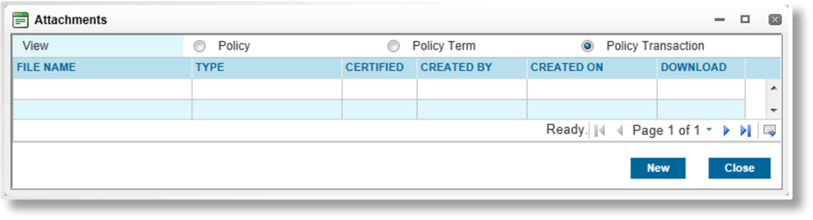
Select a View to see additional attachments.
|
Displays all available files attached to the entire policy. |
|
|
Displays all available files attached to the current term. |
|
|
Displays all available files attached to the current transaction. |
Click New. The New Attachment window opens.
Complete the necessary information. Fields marked with a red asterisk * are required.
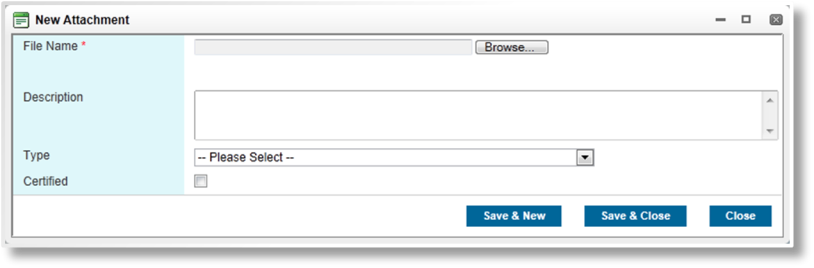
Click Save & New to attach the file and clear the form to attach another file, click Save & Close to attach the file and close the attachment window, or click Close to close the attachment window without attaching the file.
The Attachments list is updated as new files are added. Click Close to close the list and continue with the submission or policy.
Note: Some file types, such as executable files (.exe), are not permitted. An error appears on trying to save the attachment.
Viewing and Editing Attachment Details
When viewing a submission or policy, select the Attachments option in the Common Screens widget. The Attachments list opens, displaying all files attached to the current transaction.
Select a View to see additional attachments.
|
Displays all available files attached to the entire policy. |
|
|
Displays all available files attached to the current term. |
|
|
Displays all available files attached to the current transaction. |
Click a link in the File Name column to view the attachment details. The Attachment window opens.
Most fields are the same as when attaching a new file. Some additional information becomes available when the attachment is saved.
|
Displays the name of the user who attached the file, as well as the date and time it was attached. |
|
|
Displays the name of the last user to edit the attachment details, as well as the date and time the changes were made. |
All fields in the General Information panel can be edited, except for the attached file itself. To replace a file, the attachment must be deleted and the new file attached.
Click Save & Close to save the changes and close the attachment window, click Delete to delete the attached file and close the attachment window, or click Close to close the attachment window without saving any changes.
Downloading an Attached File
When viewing a submission or policy, select the Attachments option in the Common Screens widget. The Attachments list opens, displaying all files attached to the current transaction.
Select a View to see additional attachments.
|
Displays all available files attached to the entire policy. |
|
|
Displays all available files attached to the current term. |
|
|
Displays all available files attached to the current transaction. |
Click a link in the Download column.
A standard file download window opens to allow you to view the document or save it to your computer. Click Open to view the document, click Save to save the file, or click Cancel to close the window.
Deleting an Attachment
When viewing a submission or policy, select the Attachments option in the Common Screens widget. The Attachments list opens, displaying all files attached to the current transaction.
Select a View to see additional attachments.
|
Displays all available files attached to the entire policy. |
|
|
Displays all available files attached to the current term. |
|
|
Displays all available files attached to the current transaction. |
Click a link in the File Name column to view the attachment details. The Attachment page opens.
Click Delete to delete the attached file and close the attachment window, or click Close to close the attachment window without saving any changes.